


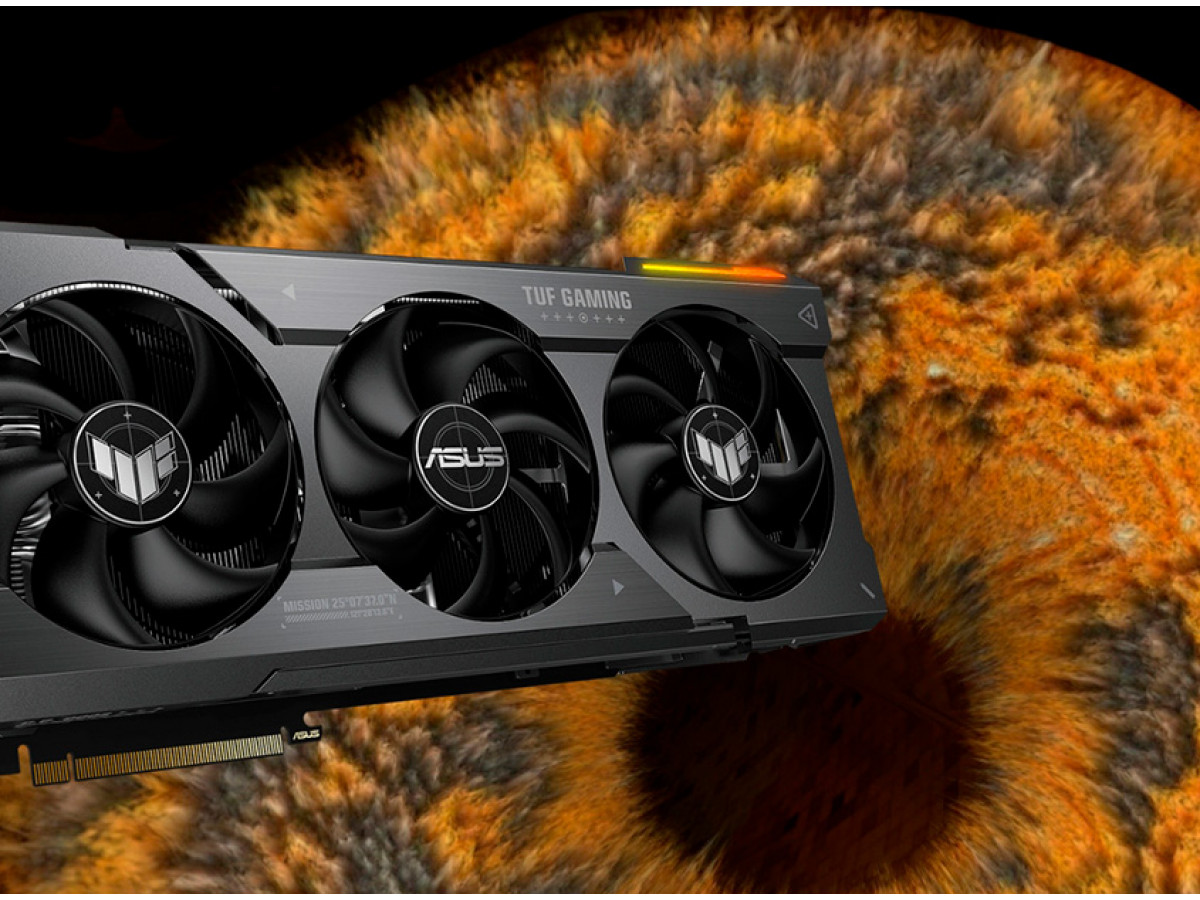
Best Programs for Overclocking, Stress Testing, and FPS Analysis of Graphics Cards
Modern graphics cards have enormous potential, but they don't always operate at their full capacity. Overclocking, stress testing, and FPS analysis allow you to understand how powerful a graphics card is and how you can improve its performance.
In this article, we will review the best programs for testing and overclocking graphics cards, examine their functionality, and provide statistical data on their effectiveness.
Overclocking Your Graphics Card: Maximum Performance
Overclocking your graphics card is the process of increasing the core and memory clock speeds to improve performance. However, when overclocking, it is important to maintain a balance between power and stability.
Here are the best programs for overclocking:
- MSI Afterburner – the most popular overclocking program. It allows you to increase the core and memory frequency, control the voltage, and monitor the temperature and fan speed.
- EVGA Precision X1 – similar to Afterburner with extensive functionality for EVGA cards, but also suitable for other manufacturers.
- AMD Radeon Software – built-in software for AMD card owners that allows you to safely overclock your video card while maintaining warranty conditions.
- NVIDIA Inspector – a specialized utility for NVIDIA video cards that allows for deep overclocking settings.
According to tests, overclocking can increase graphics card performance by 10–20%, but this also increases power consumption and temperature. According to a study by TechPowerUp, with the correct Afterburner settings, the average FPS increase in games is around 15%.
Stress Testing: Stability Check
Overclocking without stress testing can lead to unstable graphics card performance: freezes, artifacts, and even failure. Therefore, it is important to use stability testing programs:
- FurMark – creates extreme load on the GPU, revealing overheating and instability.
- 3DMark – a popular benchmark for testing performance and stability.
- OCCT – allows you to test not only the video card, but also the power supply, identifying potential problems.
- Unigine Heaven and Superposition – graphics tests that help detect instability under prolonged loads.
Studies have shown that 90% of graphics cards with unstable overclocking fail during FurMark stress tests within the first 30 minutes.
FPS Analysis: Measuring Real Performance
For gamers, it's not just overclocking that matters, but also the actual FPS in games. The following utilities will help you optimize graphics settings and monitor performance:
- Fraps – a classic program for measuring FPS and recording gameplay.
- RivaTuner Statistics Server (RTSS) – used in conjunction with MSI Afterburner, it allows you to display FPS and GPU load metrics in real time.
- CapFrameX – an advanced FPS analyzer with detailed statistics.
- NVIDIA FrameView – NVIDIA's official utility for analyzing frame rate and power consumption.
According to Digital Foundry, using FrameView and CapFrameX allows for a more accurate analysis of FPS with a deviation of no more than 2% from actual performance.
Summary and Recommendations
Overclocking and testing your graphics card are effective ways to increase your PC's performance. However, it is important to remember the balance between power and stability.
- MSI Afterburner is the best tool for overclocking.
- FurMark and 3DMark help identify overheating and instability.
- RTSS and CapFrameX provide accurate data on FPS in games.
With the right approach, you can increase FPS in games by 15–20% without the risk of damaging your graphics card. However, always monitor the temperature and stability of your system to avoid unpleasant consequences.
Write a comment