


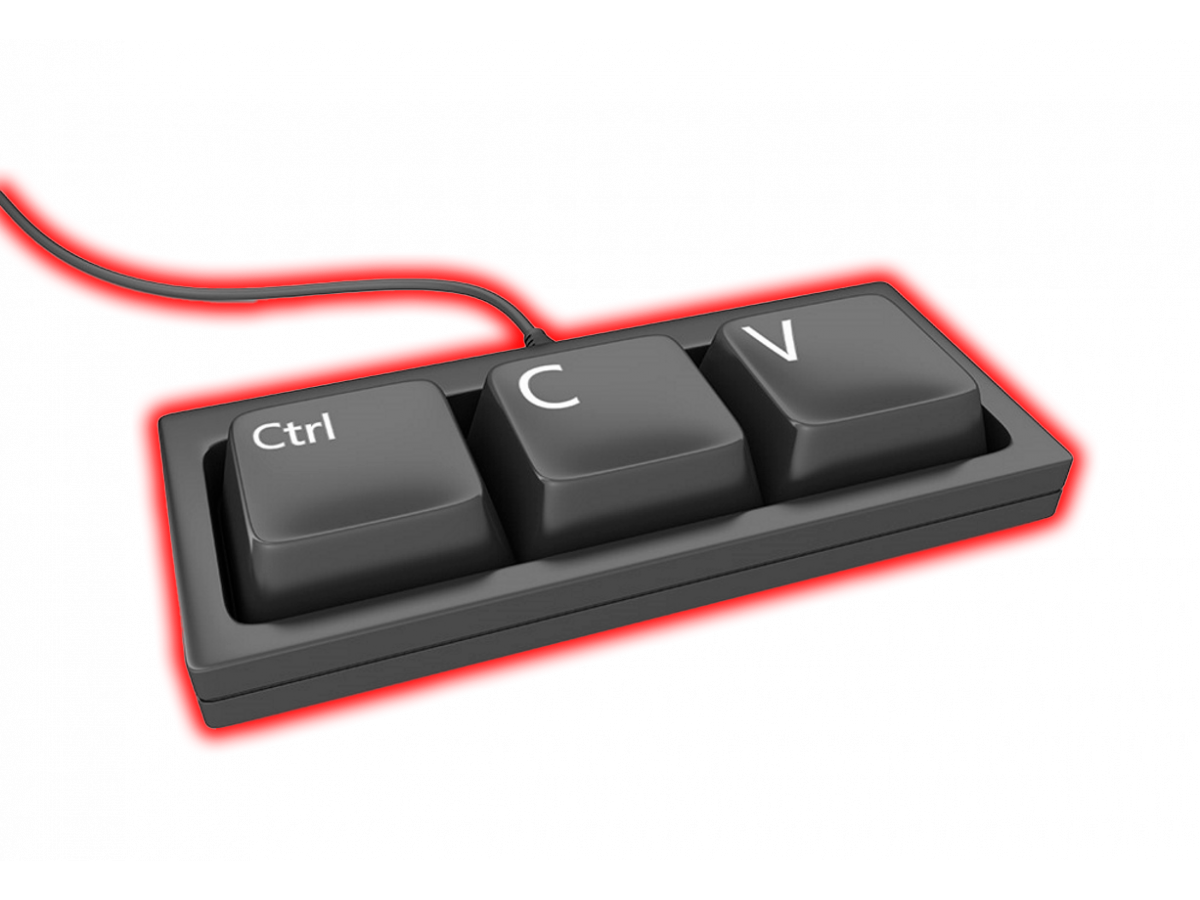
Knowing keyboard shortcuts on your laptop can significantly increase your productivity and simplify everyday tasks. Whether you use your laptop for studying, work, or entertainment, knowing useful keyboard shortcuts will help you complete tasks more efficiently and save time. In this article, we will look at the basic key combinations that can be useful in your everyday activities on your laptop.
Basic key combinations for working with the operating system
- Windows key (Win) + D - quickly minimizes all open windows and switches to the desktop. This combination is especially useful when you need to quickly switch to another file or application.
- Alt + Tab - switch between open windows. This is a handy combination for quickly switching between different programs or documents that you have open.
- Alt + F4 - close the current window or program. If you want to quickly finish working with something without going to the menu, this combination is ideal.
- Win + E - open Windows Explorer. Very useful for quickly navigating files and folders.
- Win + R - open the Run window. Here you can quickly launch various utilities such as a calculator, text editor, and other applications.
- Win + L - lock your computer. This hotkey quickly locks your laptop to prevent unauthorized access when you step away for a moment.
Key combinations for working with text and documents
- Ctrl + C - copy selected text or file.
- Ctrl + X - cut selected text or file.
- Ctrl + V - paste text or file from the clipboard.
- Ctrl + Z - undo the last action.
- Ctrl + Y - redo the undone action (reactivate the action undone with Ctrl + Z).
- Ctrl + A - select all the contents of the window.
- Ctrl + F - open the search window to quickly find text in a document or web page.
These keyboard shortcuts are indispensable when editing texts, sending emails, and working with various documents. They save time and allow you to work more efficiently.
Key combinations for navigating and controlling windows
- Win + up arrow - expand the window to full screen.
- Win + down arrow - minimize the window.
- Win + left arrow - move the window to the left side of the screen.
- Win + right arrow - move the window to the right side of the screen.
- Win + up arrow + down arrow - capture the current window in the upper or lower half of the screen.
- Win + Tab - open a screen with live thumbnails to quickly switch between open windows.
These combinations make it easier to organize your workspace, especially when using multiple windows at the same time.
Key combinations for multimedia and gaming
- Win + G - open the gaming menu in Windows 10. This allows you to use the gaming bar and recording features.
- Alt + F4 - exit the game. If you need to quit the game without using the mouse, this combination will come in handy.
- Win + P - control the projector and display settings. Allows you to quickly switch between different display modes, such as “Computer Screen,” “Projector Only,” and “Projector + Computer.”
Save time and increase productivity
Using hotkeys can significantly speed up your work on a laptop by reducing the need to constantly use the mouse. This is especially important for people who work a lot on a computer, whether in the office or at home. Knowing and using these key combinations not only helps you complete tasks faster, but also makes working with your computer more convenient and intuitive.
Key combinations for Mac:
- Command (⌘) + C and Command (⌘) + V - same as in Windows, for copying and pasting.
- Command (⌘) + X - cut text or a file.
- Command (⌘) + Z - undo the last action.
- Command (⌘) + A - select all items in a document or folder.
- Command (⌘) + N - create a new window or document.
- Option (⌥) + Command (⌘) + N - create a new folder in Finder.
- Command (⌘) + Tab - switch between open applications.
- Control (⌃) + Command (⌘) + Q - shut down or restart the computer.
Special combinations for laptops:
- Fn + F1 - decrease screen brightness.
- Fn + F2 - increase screen brightness.
- Fn + F3 - decrease volume.
- Fn + F4 - increase volume.
- Fn + F5 - switch between power modes (normal, battery saving, sleep mode).
- Fn + F6 - turn wireless modules (Wi-Fi, Bluetooth) on or off.
- Fn + F7 - switch the screen between the main and secondary monitors.
- Fn + F8 - turn the webcam on or off.
Using these key combinations allows you to quickly perform tasks without having to switch between the mouse and keyboard. This saves time, reduces stress, and increases efficiency when working on a laptop. In addition, knowing the basic key combinations makes working with your laptop much more convenient.
If you are experiencing problems with your laptop or need help troubleshooting, please contact our service center at CESERVICE.UA. We specialize in repairing computer equipment and can help you quickly and efficiently fix any problems with your laptop or other computer equipment.
Write a comment