


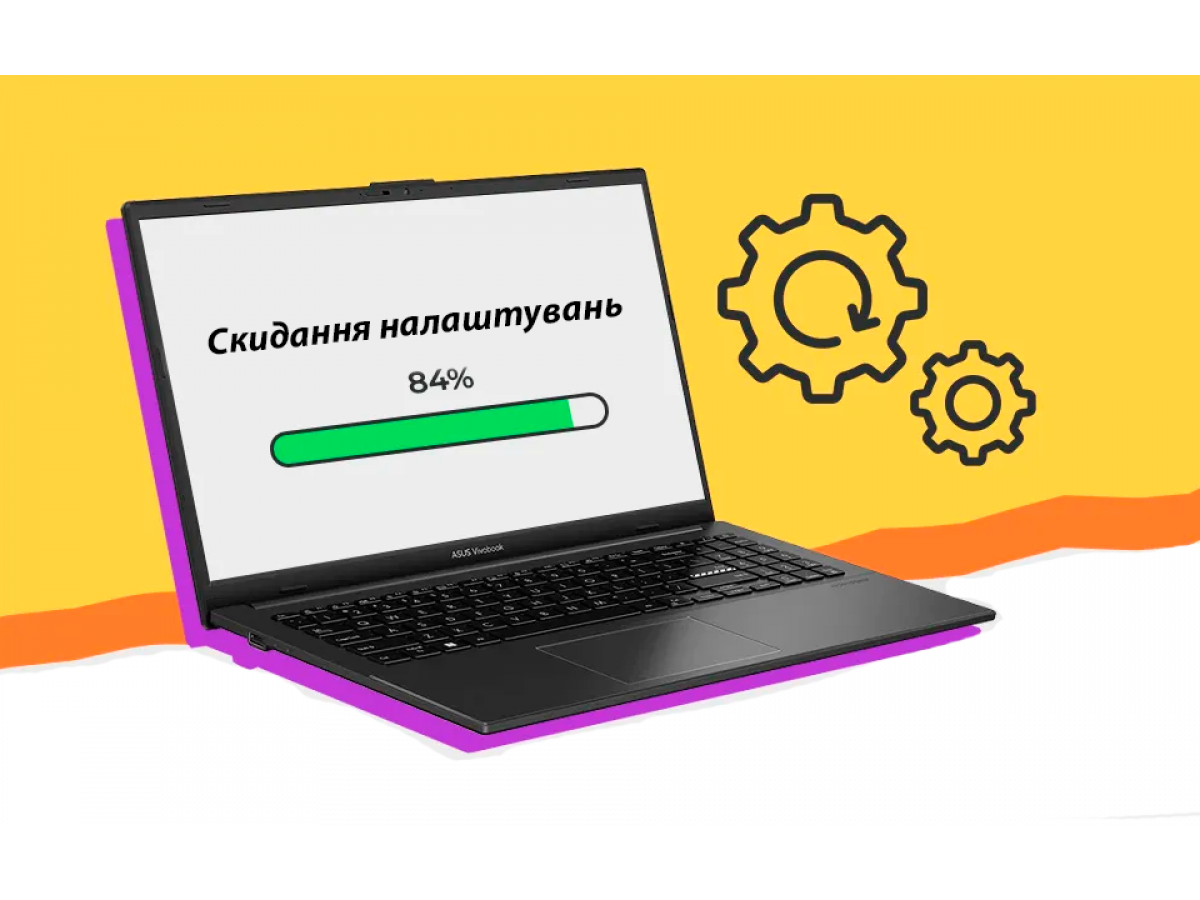
Reset your laptop to factory settings
Resetting your laptop to factory settings is a universal way to return your device to its original state. This procedure helps to eliminate software errors, viruses, system slowdowns, and other problems. Resetting is also useful before selling a laptop or transferring it to another user. In this article, we'll look at the main reset methods for popular operating systems and give practical tips to make the process safe.
Why do you need to reset your laptop?
A factory reset is useful in the following cases:
- The system is slow or unstable
- Viruses or malware have appeared on the device
- You need to completely clean the data before selling it
- Problems with updates or drivers that you can't fix
- You need to delete all personal data and return the laptop to its original settings
It's important to remember that all data will be deleted during the reset, so be sure to back up your files before the procedure.
How to prepare your laptop for a reset
- Back up your files: save your documents, photos, videos, and important files to an external storage device or cloud storage (Google Drive, OneDrive, Dropbox).
- Check the battery: the laptop must be connected to a network or have at least 50% charge to ensure that the reset process is not interrupted.
- Write down keys and passwords: some programs and Windows may require an activation key after resetting.
- Check the laptop model: different manufacturers (Dell, HP, Lenovo, ASUS, Acer) have their own ways to restore factory settings.
Resetting a laptop with Windows
Laptops running Windows 10 and Windows 11 have a built-in system restore function:
- Open Settings - Update & security - Recovery
- Select "Reset this PC"
- Click "Get started" and choose an option:
- "Keep my files" - removes programs and settings, but keeps personal files
- "Erase everything" - completely cleans the laptop, returning it to the factory state
Follow the on-screen instructions. The process can take from 20 minutes to several hours, depending on the amount of data and device performance.
Reset your laptop with macOS
On MacBooks and other Apple laptops, you can reset your laptop through Recovery Mode:
- Turn off your MacBook.
- Press Command (⌘) + R and turn on the device
- In the macOS Utilities menu, select Disk Utility and format the disk
- Return to the menu and select Reinstall macOS
- Follow the instructions to install a clean system
Important: Your MacBook must be connected to the Internet to download the latest version of macOS.
Use the manufacturer's recovery buttons
Many laptops have built-in shortcuts to quickly restore factory settings:
- Lenovo - Novo button when the device is turned off
- HP - press F11 when turning on the device
- Dell - keys Ctrl + F11 or via Recovery Partition
- ASUS / Acer - keys F9 / Alt + F10
These methods allow you to launch the built-in recovery partition without using external media.
Useful tips for resetting your laptop
- Before resetting, make sure you have backup copies of drivers and programs that are important for your work.
- If the laptop is for sale, be sure to do a full reset with all files deleted.
- After restoring, install the latest system and driver updates to keep your device secure.
- Do not interrupt the process, especially if it takes a long time - this can lead to system damage.
Resetting your laptop to factory settings is an effective way to restore stability, clean up data, and prepare the device for sale. The method depends on the operating system, laptop model, and user goals. The main thing is to prepare in advance: save data, charge the device, and have all the necessary keys and passwords. Once restored, the laptop will work like a new one - with a clean system and optimal performance. By following these instructions, you can safely and correctly return your laptop to its factory condition.
Write a comment