


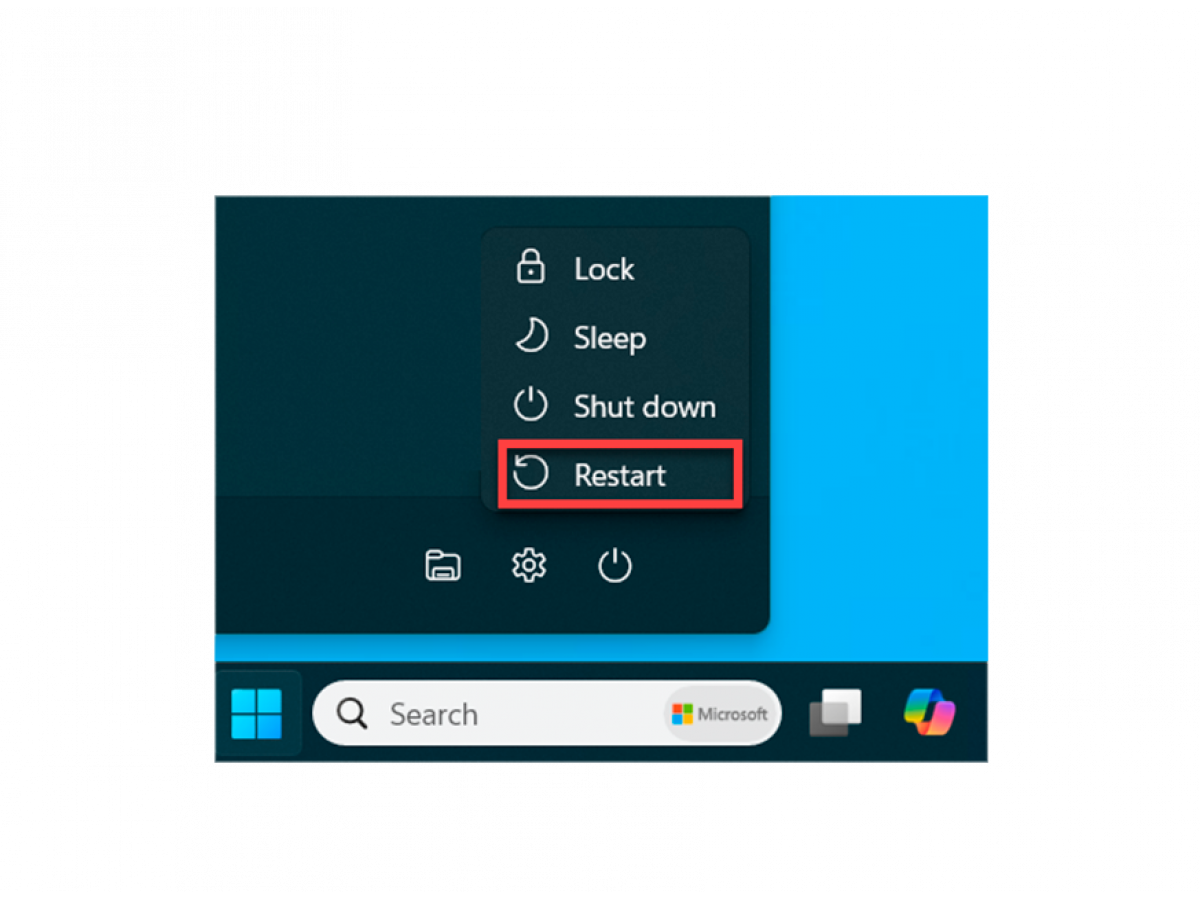
Restarting your computer is one of the most common operations performed by users when the system malfunctions. However, it does not always work correctly, which can lead to data loss or damage to equipment. To avoid problems, it is important to know how to restart your computer safely.
Why do you need to restart your PC?
Restarting your computer allows you to:
- eliminate minor program glitches;
- update system resources;
- terminate frozen processes;
- apply changes after installing programs or updates.
Restarting correctly helps preserve data and prevent possible damage to files or system components.
Steps for a safe reboot
Save your data
Before rebooting, make sure that all open documents, projects, or files are saved. This will help you avoid losing information in case of unforeseen problems.
Close applications
Close all running applications to avoid conflicts between applications and the operating system.
Use standard system tools
In Windows, follow these steps to safely restart your computer:
- Click Start.
- Select Shut Down or Restart.
- Wait for all processes to finish.
On macOS, open the Apple menu and select Restart.
Avoid using the power button
Forcing a shutdown or restart by holding down the power button should only be done in emergencies, such as when the computer is completely frozen and unresponsive. Doing so may damage system files or even the hardware.
Use hotkeys
In Windows: press Ctrl + Alt + Delete, select Shut Down or Restart.
In macOS: use the Control + Command + Power combination.
Check for updates
Before restarting, make sure that all available updates have been installed.
What to do if the system freezes?
If the computer does not respond:
- Try to terminate the frozen processes via Task Manager (Ctrl + Shift + Esc in Windows).
- If this does not help, perform a forced reboot by holding down the power button for 5-10 seconds.
The importance of regular rebooting
- prevents the accumulation of errors in the operating system;
- improves performance;
- extends the life of the equipment.
Restarting your computer is a simple but important action that requires careful attention. By following these recommendations, you can avoid data loss, prevent system damage, and ensure the stable operation of your device.
Write a comment