


-1200x900.jpg)
Today we will talk about how an ordinary person, without any special technical education or experience in diagnostics, can easily choose and diagnose a used laptop.
Nowadays, there is such a wide variety of used laptops that it is difficult to decide:
- Which manufacturer's used laptop should I buy?
- Which model of used laptop should I choose?
- What specifications should it have?
- Which seller should I buy from?
This list of questions could go on forever, but we will focus on the main points in selecting and purchasing used laptops in Kyiv and Ukraine.
Almost everyone knows that the main and most common laptop manufacturers are: DELL, HP, Lenovo, ASUS, and ACER. And the equipment from these manufacturers is both stable and durable, so if you want to buy a laptop, it is worth considering these manufacturers. When choosing a model, we advise you not to spare any effort and spend some time visiting any used equipment store, or even our AS-IT used equipment store, to see and feel your future laptop with your own hands. Since each laptop has its own characteristics (weight, size, color, etc.), you can take all these nuances into account before making your purchase.
Laptop specifications should be selected based on the tasks at hand, as many buyers follow the principle: the better the specifications, the better the laptop? That's true. But the price of such a laptop can increase almost twofold, or even threefold. And the result is the same: it is only used at 30% capacity. Our managers can calculate the optimal parameters for your tasks free of charge.
But you have to decide for yourself where to buy it. There are many offers on the market now, ranging from ordinary individuals to huge stores with a large assortment of equipment. But you should pay attention to the fact that you will not be able to get a warranty from an individual, and you may lose all your money. It is better to overpay a little and have the opportunity to return or repair the laptop for free.
What should you pay attention to before buying?
- Check the laptop for external damage. There should be no obvious chips or scratches on the screen. Pay special attention to the corners of the laptop.
- Test the Wi-Fi and keyboard. Connect to a Wi-Fi access point and check the Internet connection by going to a page with an online keyboard test (and test the keyboard at the same time). If the Internet connection is poor, share your smartphone's Wi-Fi connection. This feature has long been available on iPhone iOS and modern Android devices. The keyboard should not creak when pressed, and all keys should respond clearly without sticking.
- Check the optical DVD drive. To understand the condition of the DVD drive, it is best to check the recording of files from your flash drive to a DVD-RW disc.
Let's move on to testing the laptop's software.
We will need only three programs for this: Aida64, FurMark, and SSDlife. Before coming to make your purchase, we recommend saving them to some kind of storage device.
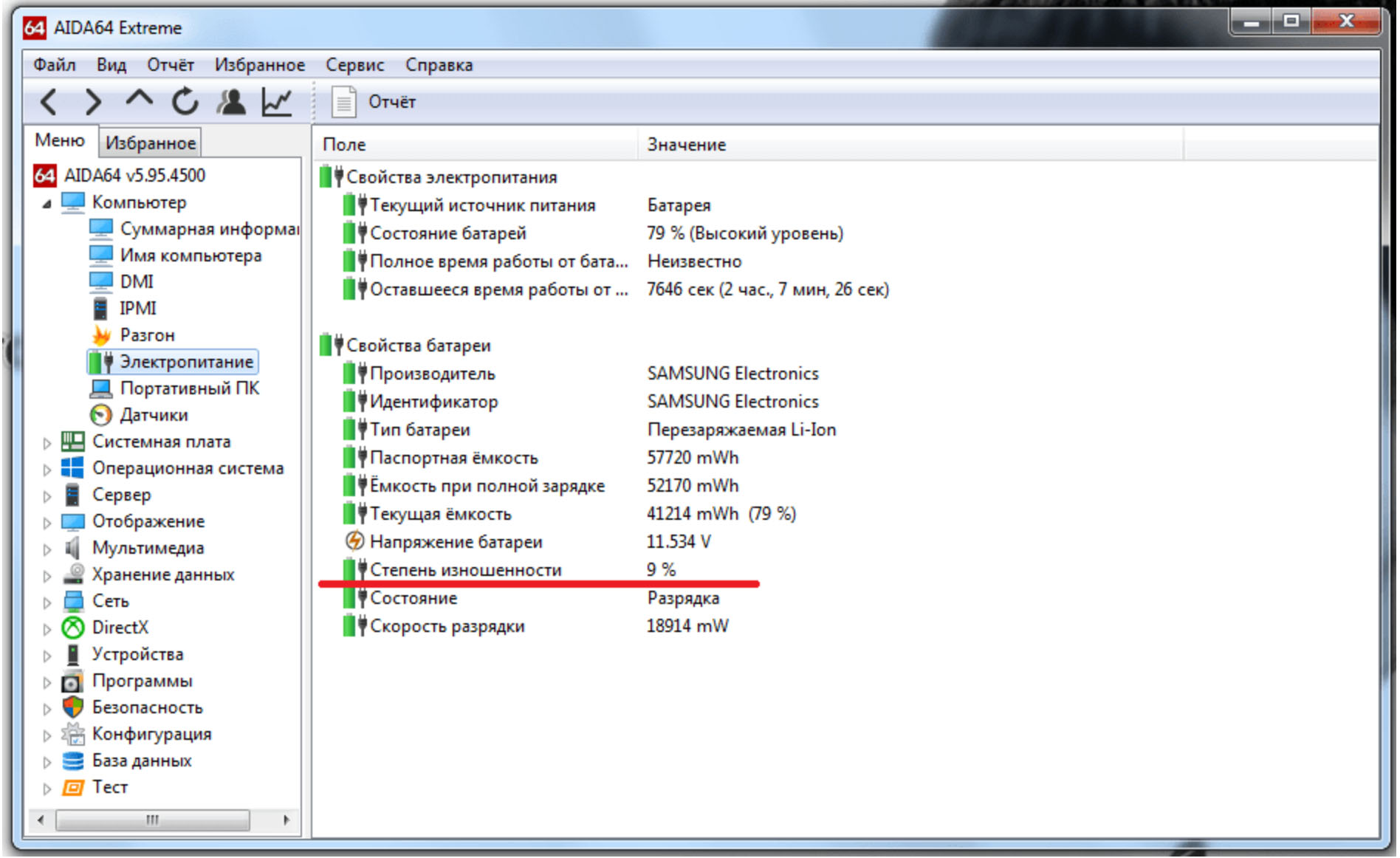
- Check the laptop battery for wear and tear. Launch Aida64, go to the computer section, and click on power supply. Here you can see the degree of wear and tear on the laptop battery, its capacity, and operating time under the current processor load and screen brightness.
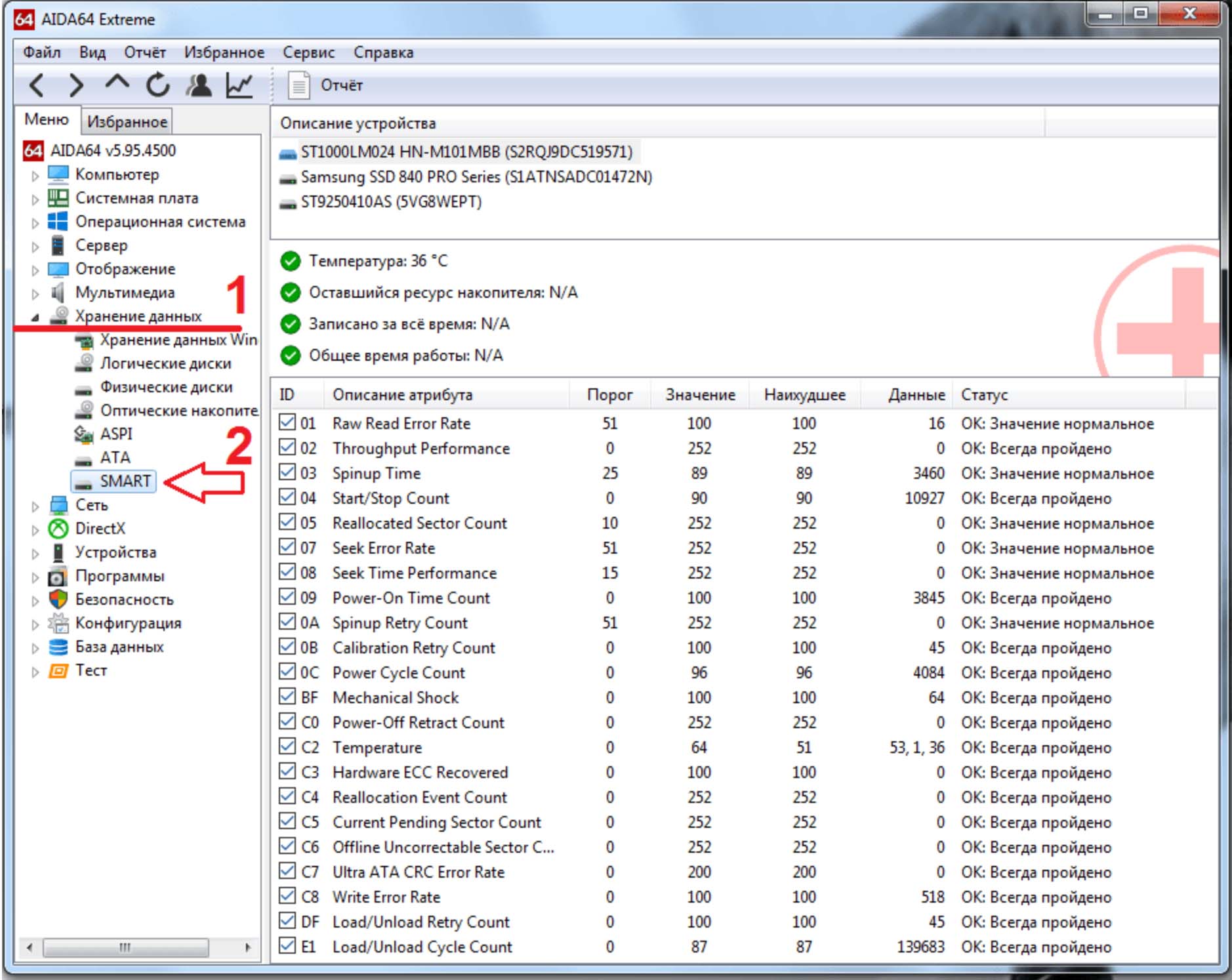
2. Check the condition of the hard drive (SMART). Go to the data storage section and select SMART. In the data, you can view the history and condition of the hard drive or SSD drive. If there is a check mark in the “ID” column, the indicator is normal; if the indicator is poor, there will be an exclamation mark or a cross.
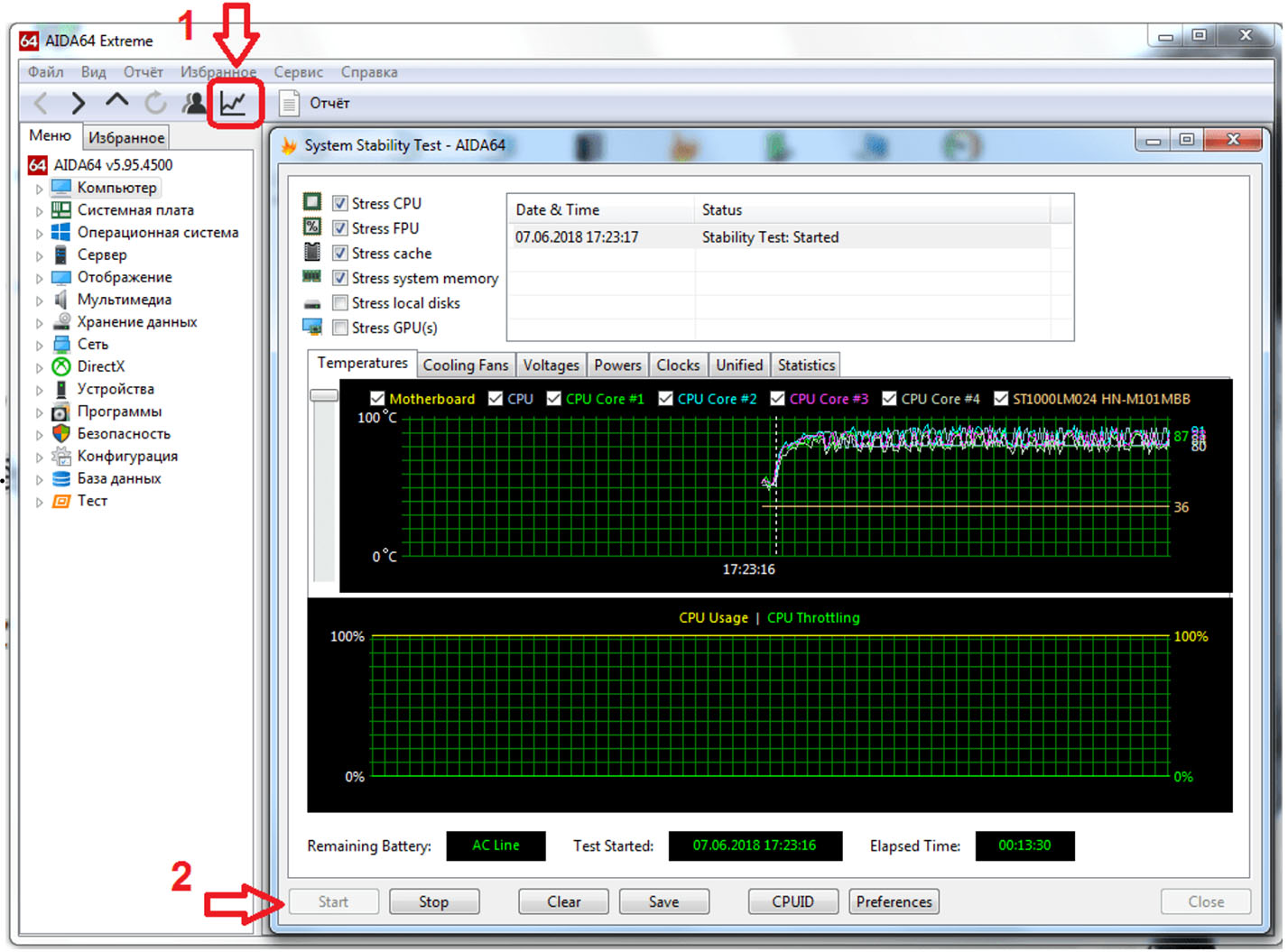
3. Run a stress test on the laptop's processor and RAM. Please note that it is best to run the stress test when the laptop is connected to a power source. You can select the devices to be tested in the upper right corner of the window. Below are two graphs: the top one shows the temperature, and the bottom one shows the processor load level. Run for no more than 10 minutes, as this may damage the system.
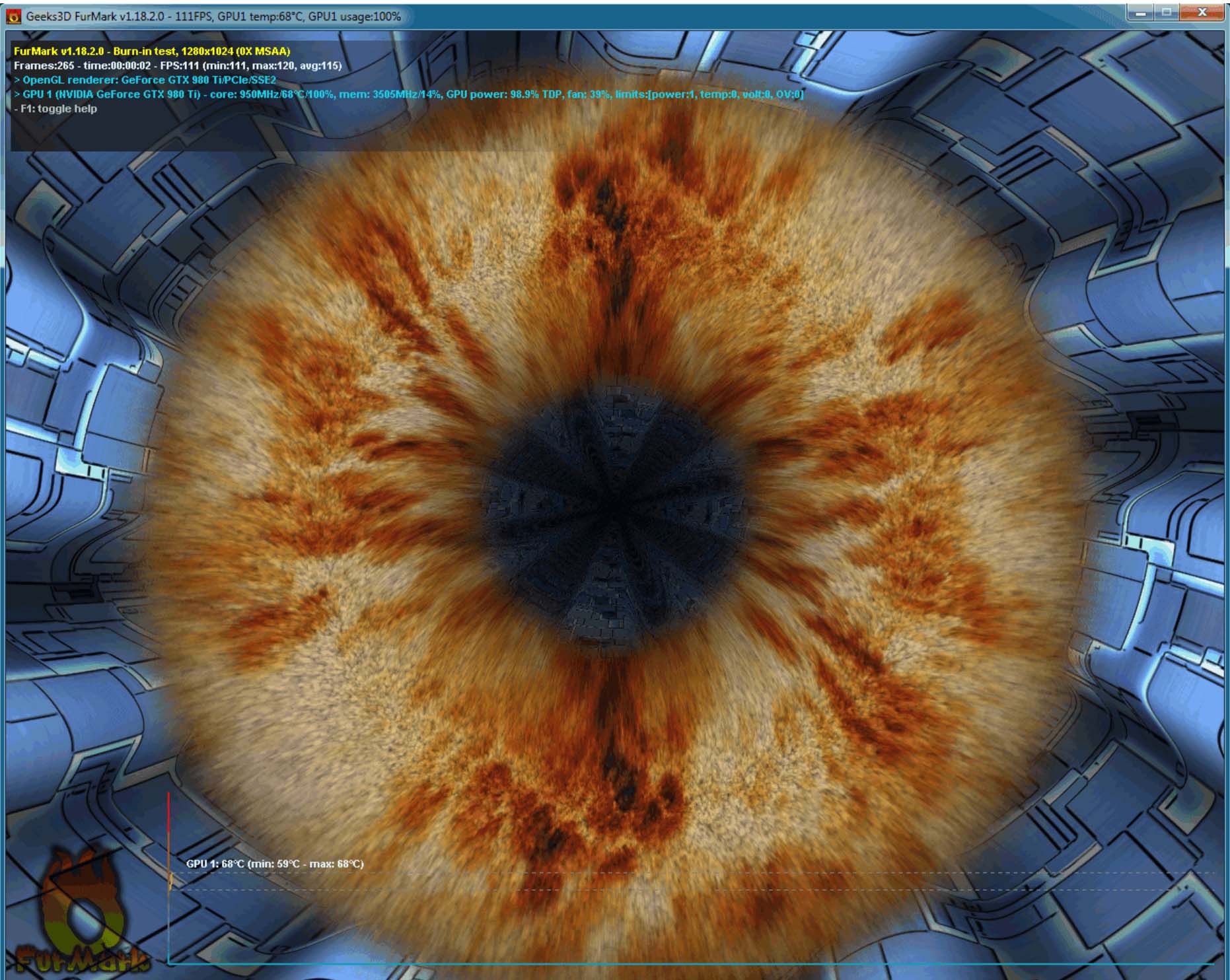
4. After all the tests have been completed, run FurMark for 5-10 minutes if you have a discrete graphics card to make sure that the graphics card did not overheat or need repair. At the same time, you can open any application (e.g., a text editor) and check the laptop screen. There should be no bright spots or dark spots, and the screen backlight should be uniform.
5. Also, don't forget to check all I/O ports (USB, VGA, AUDIO, DP, etc.) if possible.
We hope our tips will help you buy a high-quality used laptop.
Write a comment